API Keys — Platform
Static API keys for machine access to Aida Platform cloud endpoints (assistant public API, Platform MCP, and other key-gated routes).
Create a key
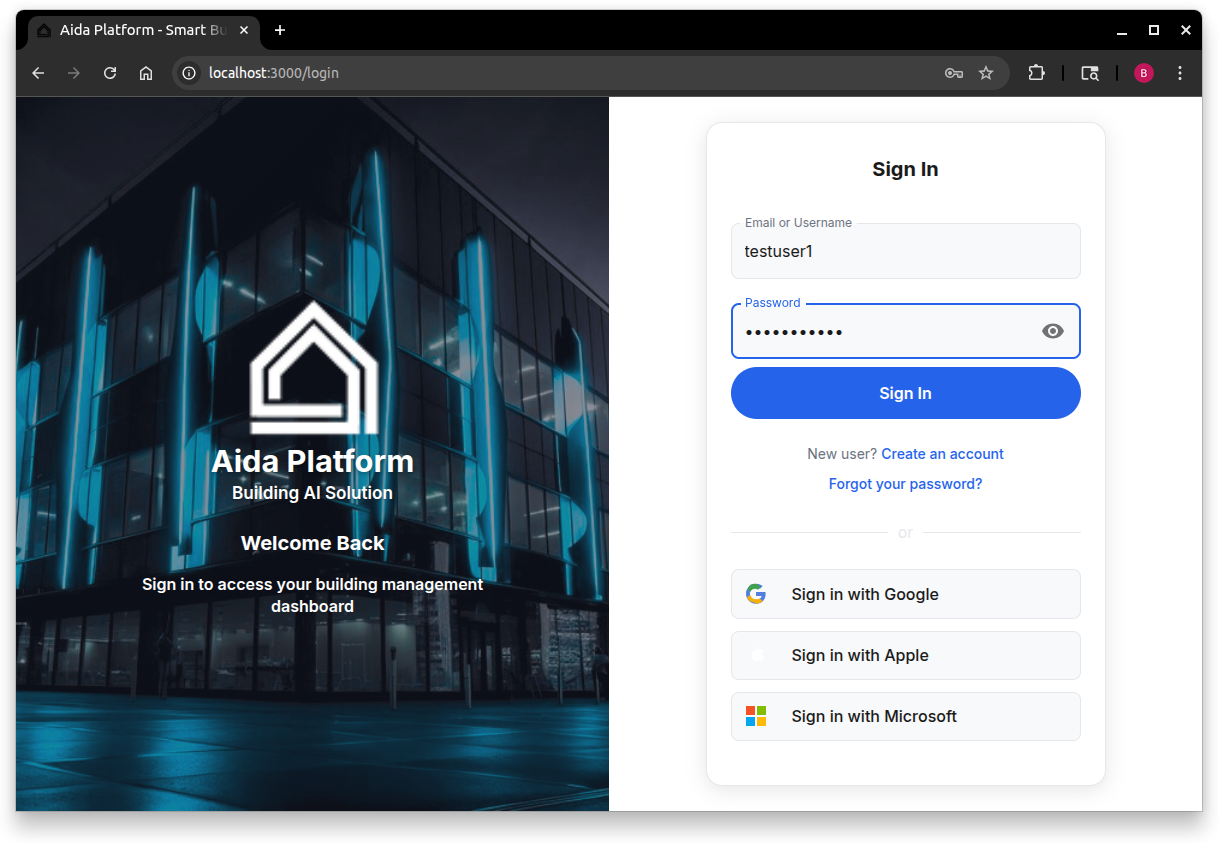
- Sign in to Aida Platform.
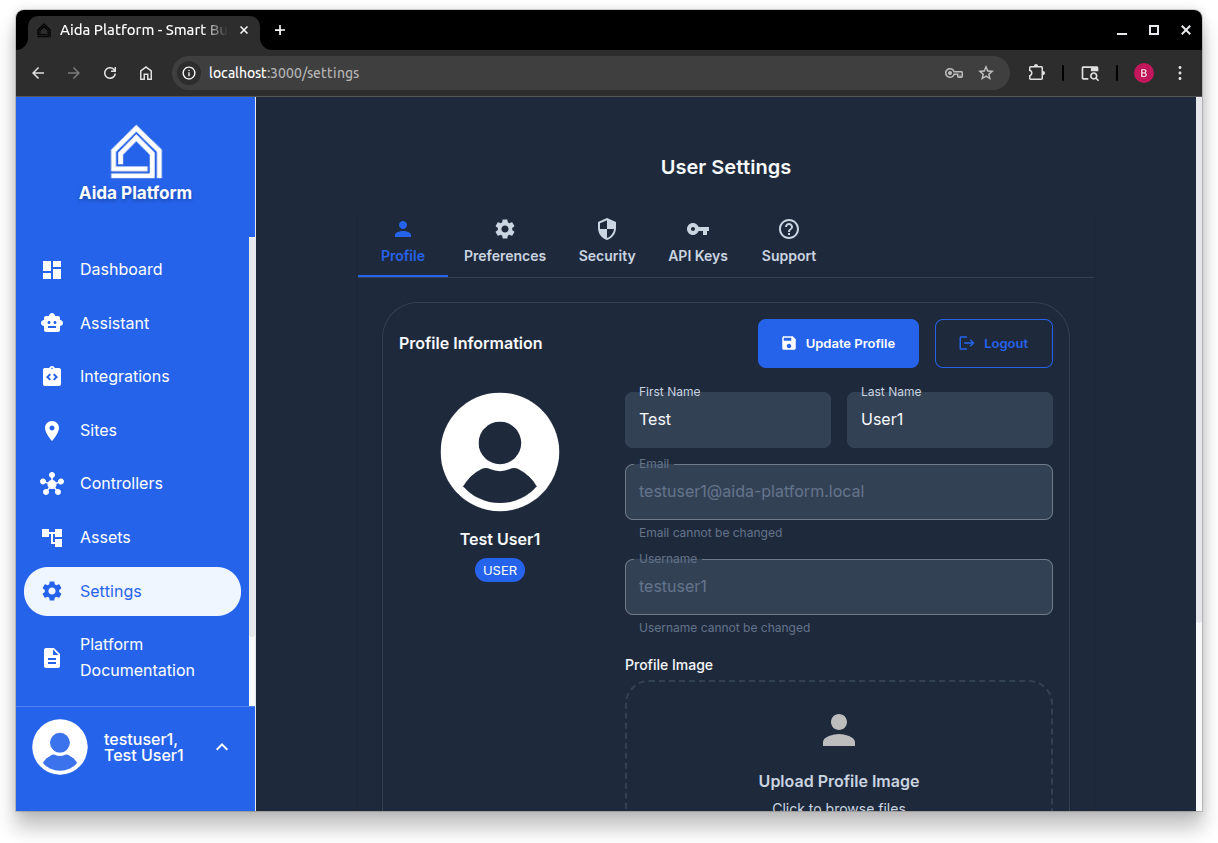
- Open Settings.
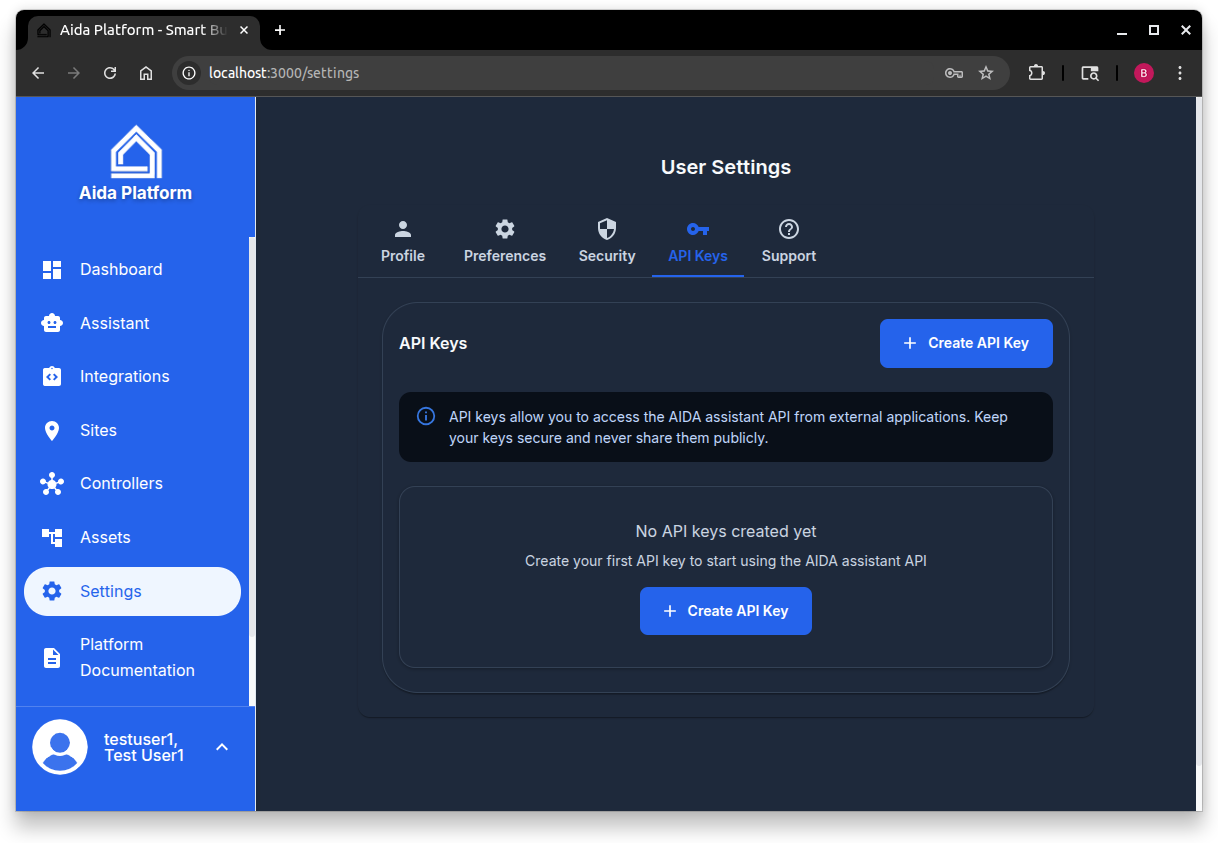
- Select the API Keys tab.
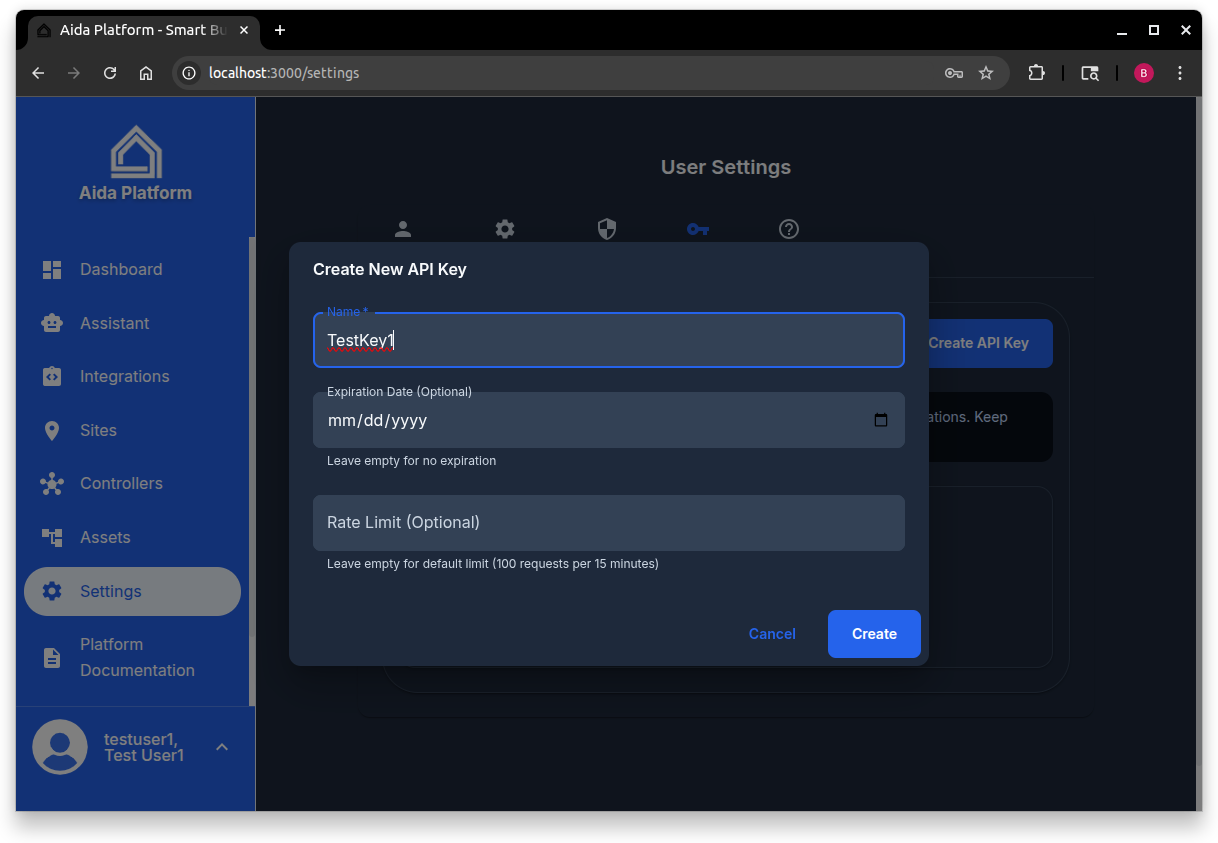
- Choose Create API Key.
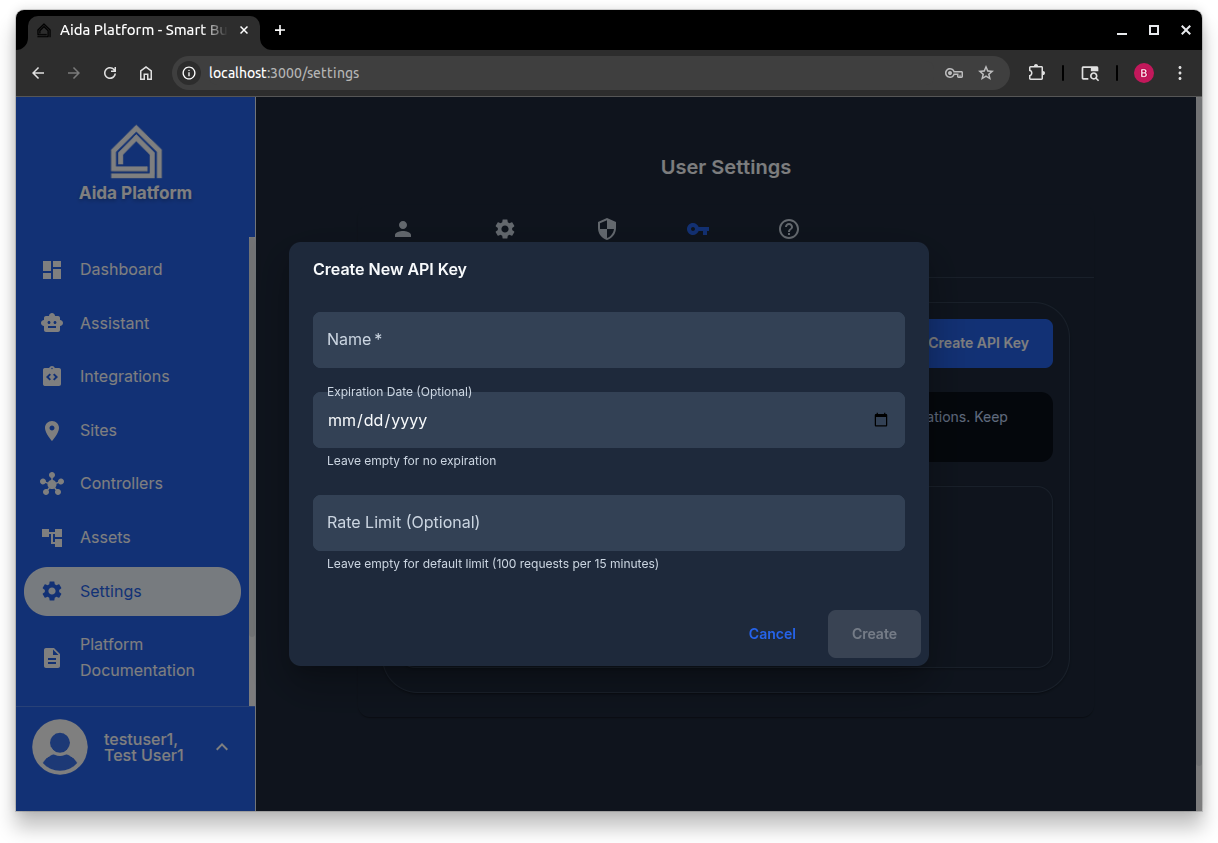
- Enter a name, optional expiration, and optional rate limit.
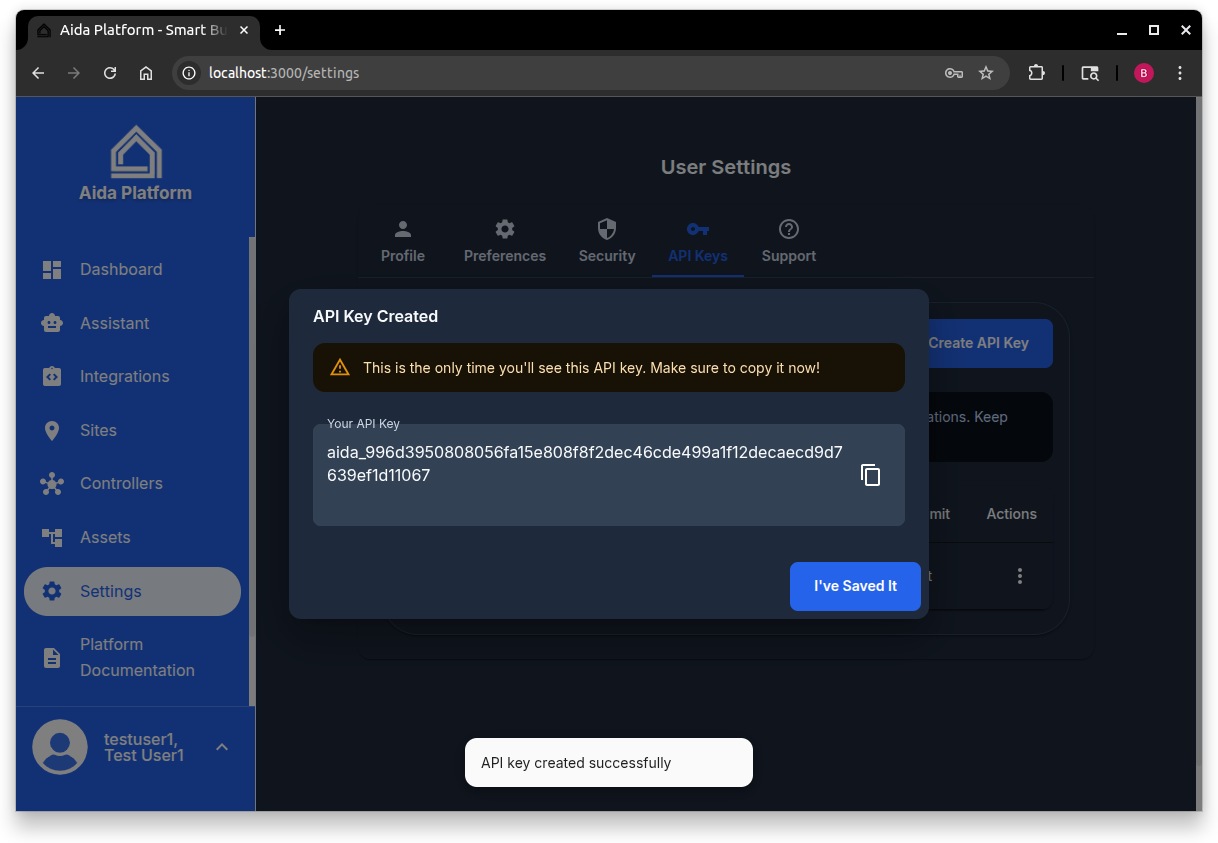
- Create the key and copy it immediately — the full value is shown only once.
Key format:
aida_<64-character-hex-string>
Store keys in a secret manager or environment variable — never in client-side code or public repos.
Manage keys
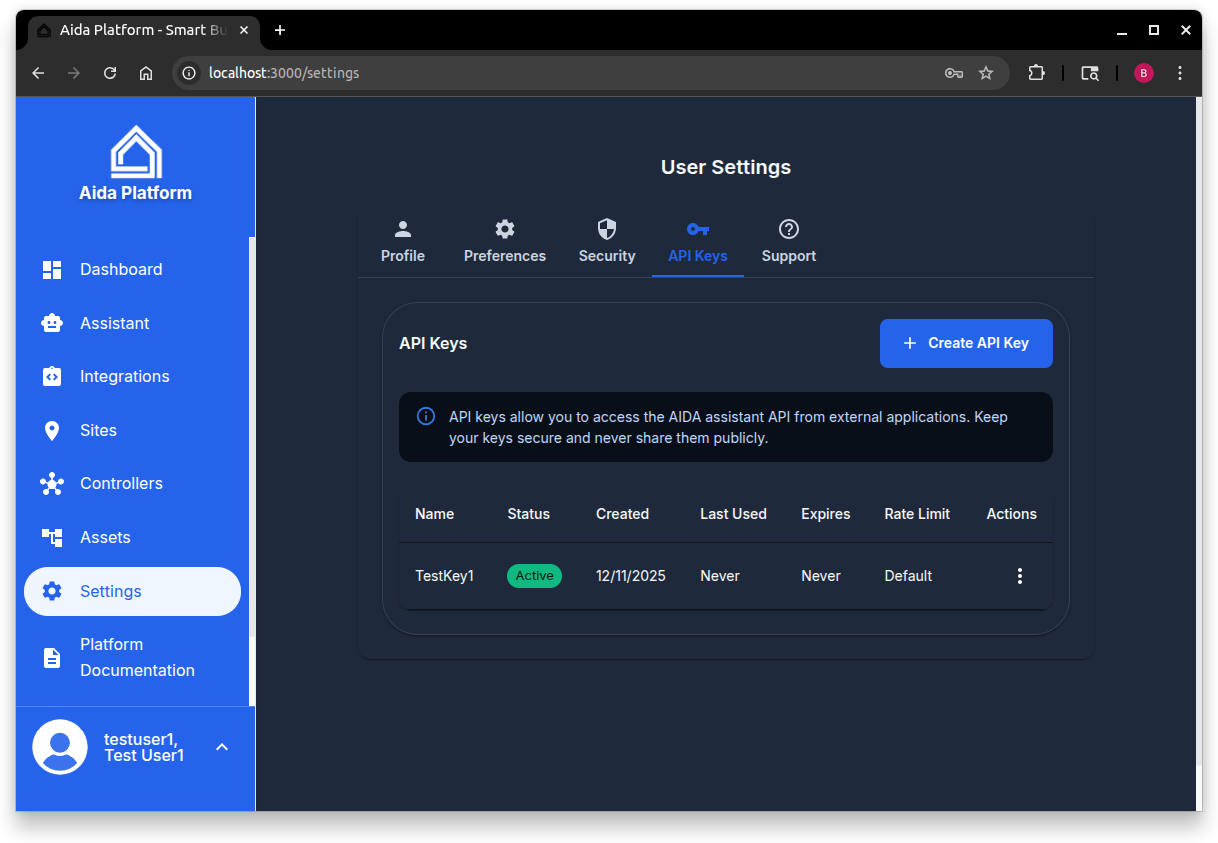
The list shows name, status, created / last used, expiry, and rate limit.
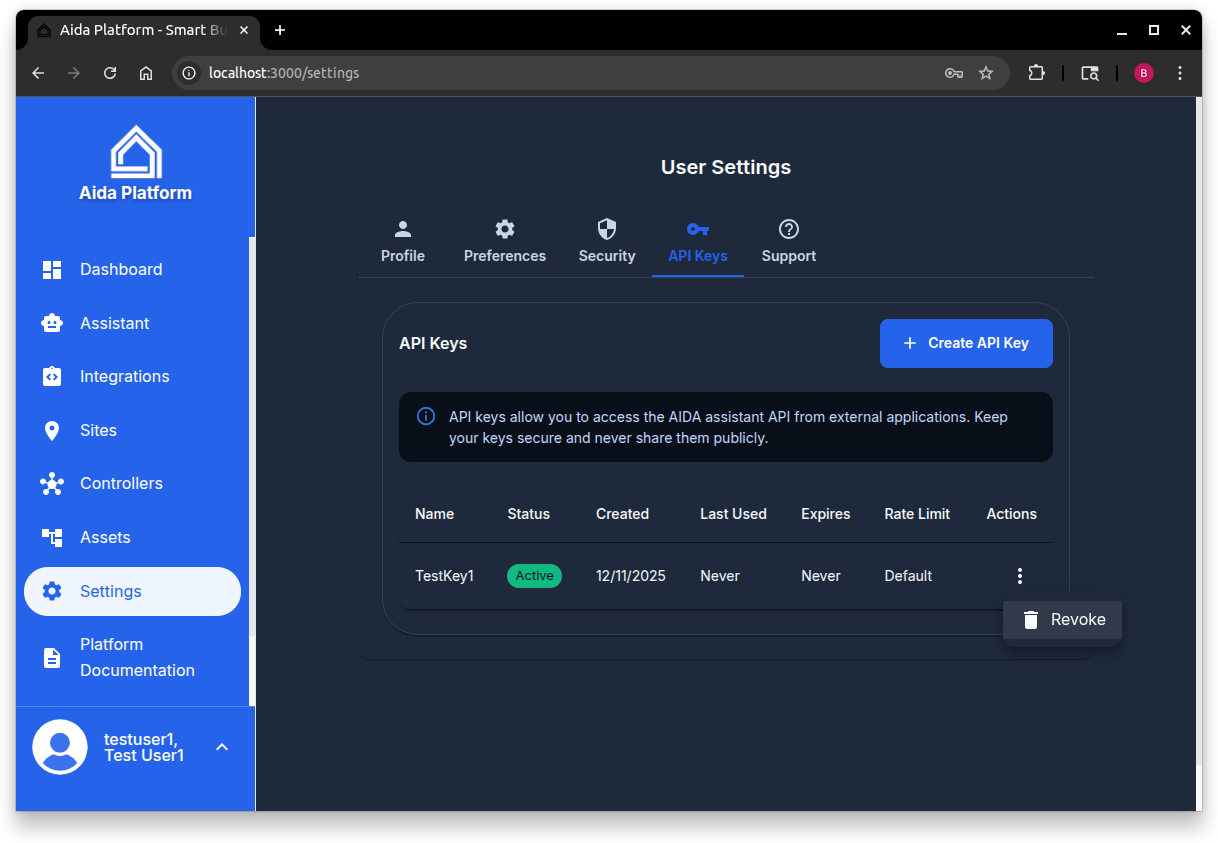
To revoke a key: open the row menu → Revoke → confirm. Revoked keys stop working immediately.
Use a key
Send the key in the X-API-Key header.
Assistant chat (example):
curl -X POST https://api.aida-platform.com/api/assistant/public/chat \
  -H "X-API-Key: aida_your_api_key_here" \
  -H "Content-Type: application/json" \
  -d '{
    "message": "What is my energy usage?",
    "sessionId": "my-session-123"
  }'
Platform MCP (example):
curl -X POST https://api.aida-platform.com/api/assistant/mcp \
  -H "X-API-Key: aida_your_api_key_here" \
  -H "Content-Type: application/json" \
  -d '{"method": "tools/list"}'
Base URLs:
| Surface | Production |
|---|---|
| Platform API | https://api.aida-platform.com/api |
| Assistant public | https://api.aida-platform.com/api/assistant/public |
| Platform MCP | https://api.aida-platform.com/api/assistant/mcp |
Interactive schemas: API Docs — Platform.
:::tip Controller keys are separate On-site controller keys are created in the controller Settings → API Keys UI. See API Keys — Controller. :::
Security practices
- Prefer short-lived keys when possible; revoke unused keys
- Rotate after staff changes or suspected exposure
- Scope usage to server-side integrations only